
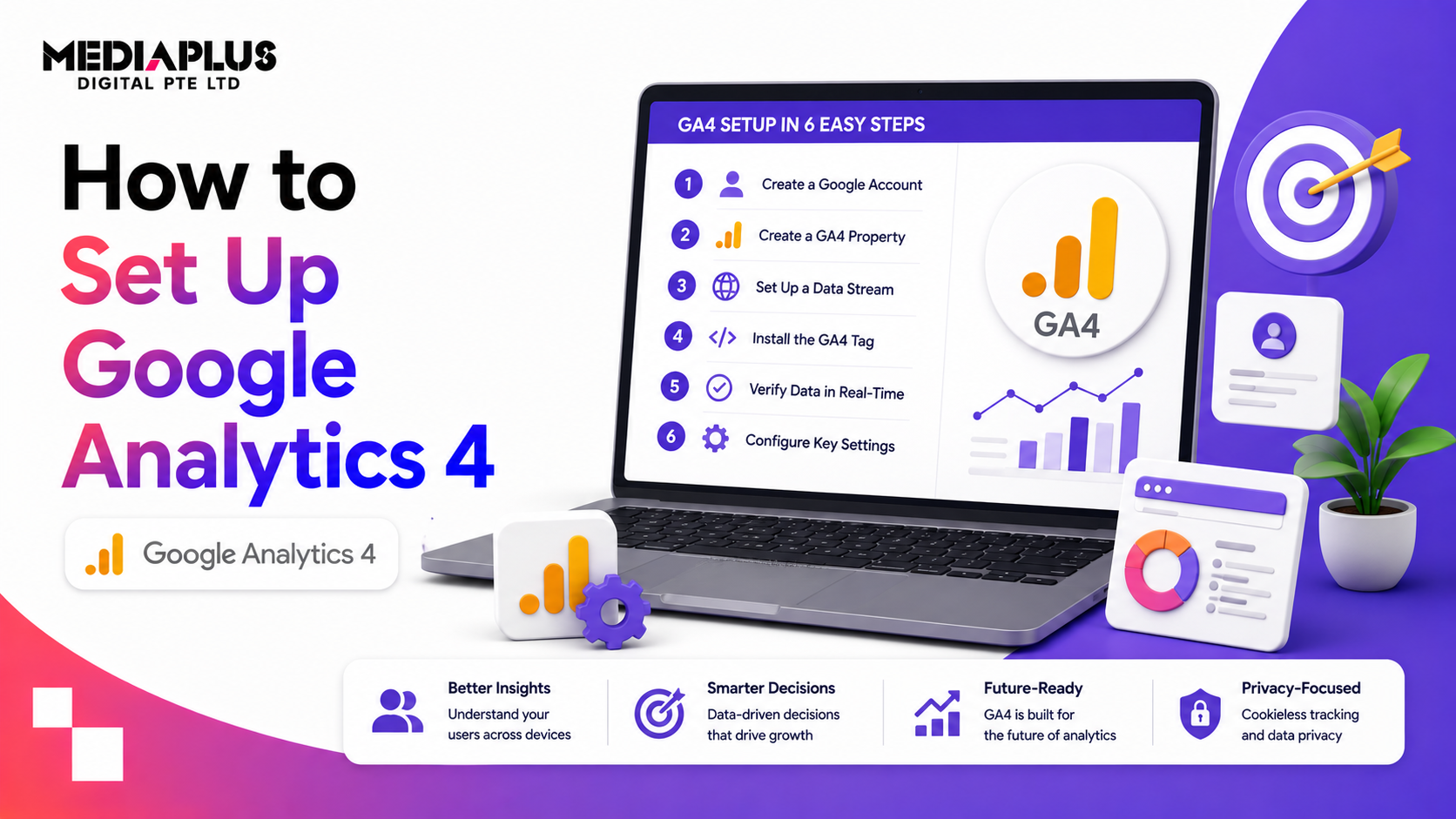
Google Analytics 4 is how you find out what people actually do on your website: where they come from, what they view, and whether they convert. It is free, it is the standard, and Universal Analytics is gone, so GA4 is the version every business needs. This guide walks through setting up GA4 from scratch, connecting it to your site, and configuring the events and conversions that make the data useful.
Quick answer: To set up GA4, create a Google Analytics account and property, add a web data stream for your site, then install the GA4 tag, easiest through Google Tag Manager, or directly, or via your CMS plugin. Verify data is flowing in Realtime, mark your key actions (form submits, purchases) as key events (conversions), link Google Ads and Search Console, and set up basic reports. Budget an hour for the core setup and a little longer to configure events properly.
What is Google Analytics 4?
Google Analytics 4 (GA4) is Google’s website and app analytics platform. Unlike the old Universal Analytics, which was built around sessions and pageviews, GA4 is built around events: every interaction (a page view, a click, a scroll, a purchase) is an event. This event model tracks the full customer journey across devices and is designed for a privacy-first, cookieless future. It is free for most businesses and integrates with Google Ads and Search Console, which makes it central to any digital marketing and SEO effort.
Before you start
Have these ready:
- A Google account (a business one, not a personal login you might lose).
- Access to your website or your CMS admin, so you can add a tag.
- Ideally, Google Tag Manager installed, which makes tagging far easier.
- A list of the key actions you want to measure (form submissions, calls, purchases, sign-ups).
Step 1: Create a GA4 account and property
- Go to analytics.google.com and sign in.
- Click Admin (the gear icon), then Create, then Account. Name it (usually your company name) and set data-sharing options.
- Create a Property. Name it (your website), and set the reporting time zone and currency. Getting the time zone right matters for accurate daily reporting.
- Enter your business details and objectives when prompted.
Step 2: Set up a web data stream
A data stream is the source that sends data into GA4.
- In the new property, choose the Web platform.
- Enter your website URL and a stream name.
- Leave Enhanced measurement on. This automatically tracks scrolls, outbound clicks, site search, video engagement, and file downloads without extra work.
- GA4 gives you a Measurement ID (starts with G-). You will need it next.
Step 3: Install the GA4 tag on your site
Pick the method that fits your setup:
|
Method |
Best for |
How |
|
Google Tag Manager |
Most sites, cleanest option |
Add a GA4 Configuration tag with your Measurement ID, fire on All Pages, publish |
|
CMS plugin |
WordPress, Shopify, Wix |
Use the platform’s GA4 or GTM integration and paste the ID |
|
Direct code |
Full control, no GTM |
Paste the GA4 tag into the <head> of every page |
Google Tag Manager is recommended: it keeps all your tags in one place and makes adding conversion tracking later much easier.
Step 4: Verify data is flowing
Do not assume it works. Confirm it:
- Open GA4, go to Reports, then Realtime.
- Visit your website in another tab.
- You should see yourself appear as an active user within seconds.
If nothing shows, recheck the Measurement ID, that the tag fires on all pages, and that GTM is published. Use Google Tag Assistant to debug.
Step 5: Set up key events (conversions)
This is the step most people skip, and it is what makes GA4 useful. “Key events” (formerly called conversions) are the actions that matter to your business.
- Decide what counts: form submissions, purchases, sign-ups, calls, bookings.
- Create or identify the event for each (via Enhanced measurement, GTM, or by marking an existing event).
- In Admin, then Events, toggle the relevant event as a key event.
- For e-commerce, set up the purchase event with revenue so you can measure value, not just count.
Without key events, GA4 tells you about traffic but not results.
Step 6: Link Google Ads and Search Console
- Link Google Ads (Admin, then Product links) to import conversions and see which campaigns drive action.
- Link Search Console to see organic search queries and landing-page performance inside GA4.
These links turn GA4 from a traffic counter into a tool that connects marketing spend and SEO to outcomes.
Step 7: Configure the essentials
- Set data retention to the maximum (14 months) in Admin, then Data Settings, so you keep more history.
- Filter internal traffic so your own visits do not skew the data (define your IP as internal).
- Check consent and privacy settings so you comply with PDPA and cookie requirements.
- Add users who need access, with the right permissions.
- Build or explore reports, and consider a simple Looker Studio dashboard for stakeholders.
Common GA4 setup mistakes
- No key events configured, so you measure traffic but not conversions.
- Duplicate tags (GTM and hardcoded), which double-counts data.
- Wrong time zone or currency, which skews reporting.
- Not filtering internal traffic, inflating your numbers.
- Ignoring consent/PDPA requirements.
- Never checking Realtime, so a broken tag goes unnoticed for weeks.
Frequently asked questions
Is Google Analytics 4 free?
Yes. GA4 is free for the vast majority of businesses. There is a paid enterprise tier (GA4 360) for very large organisations, but most will never need it.
Do I need Google Tag Manager to use GA4?
No, but it is strongly recommended. GTM makes installing GA4 and adding conversion tracking much cleaner than editing site code each time.
How long does GA4 take to set up?
The core setup (account, property, tag, verification) takes about an hour. Configuring events and conversions properly takes a bit longer but is worth it.
Why is my GA4 not showing data?
Usually the tag is not installed correctly, the Measurement ID is wrong, GTM was not published, or the tag does not fire on all pages. Check Realtime and use Tag Assistant to debug.
What is the difference between GA4 and Universal Analytics?
Universal Analytics was session-based and has been discontinued. GA4 is event-based, tracks users across devices, and is built for a privacy-first, cookieless web. GA4 is the only current version.
Get analytics that actually inform decisions
Setting up GA4 correctly, with real conversion tracking, is what turns data into decisions. If you want GA4 and Google Tag Manager set up and configured properly for your business, talk to MediaPlus Digital. Explore our SEO and digital marketing services, with PSG support for eligible SMEs.