
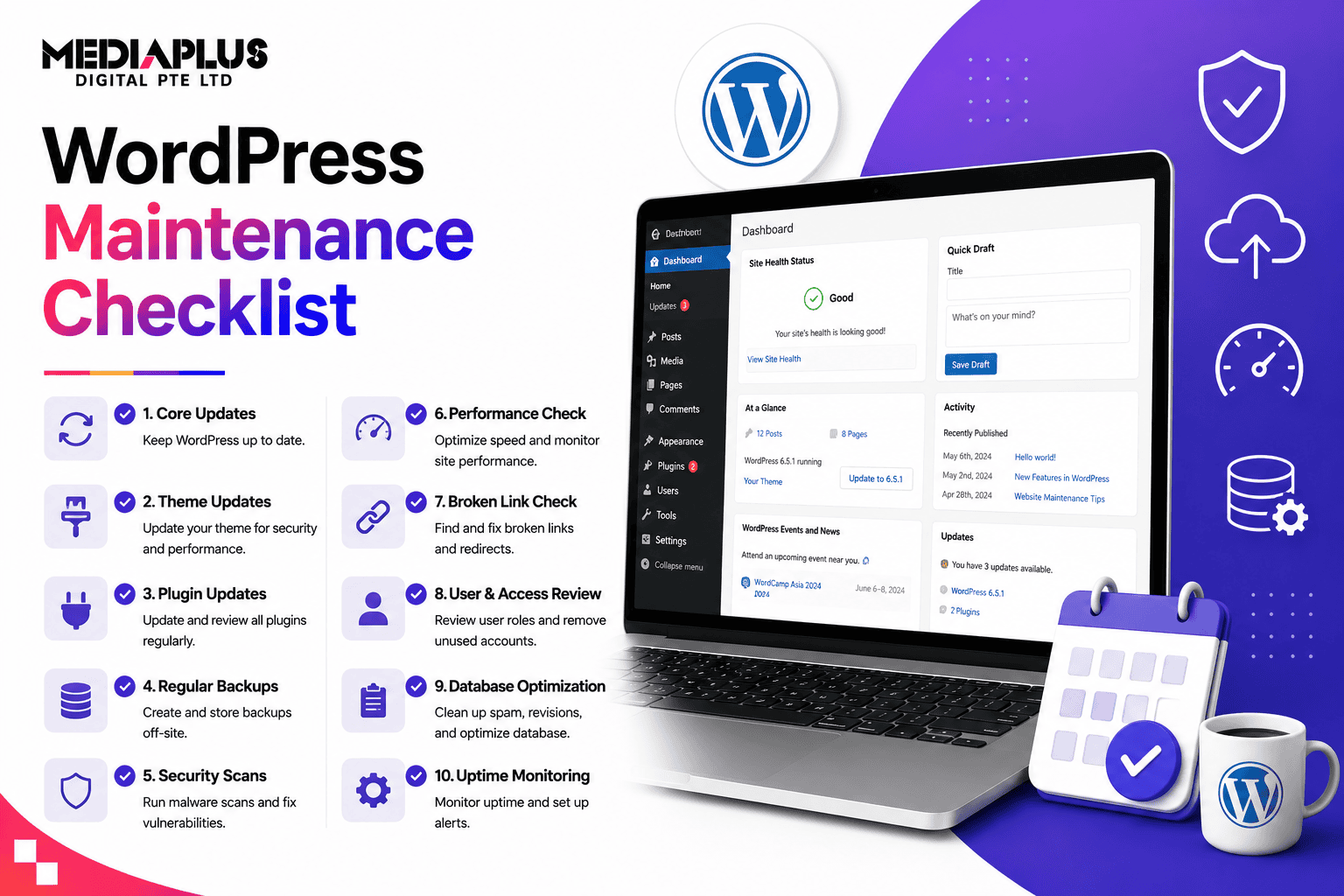
A WordPress site is not “set and forget”. Left alone, it drifts toward slow load times, broken features, and, worst of all, security holes that get sites hacked. Regular maintenance prevents all of that, and it takes about an hour a week once you have a routine. This checklist lays out exactly what to do and how often, from daily backups to quarterly deep cleans, plus the tools to do each job.
Quick answer: WordPress maintenance means regularly updating core, plugins, and themes; running and verifying backups; scanning for security threats; checking performance and uptime; cleaning the database; and fixing broken links and forms. Organise it by cadence: daily (backups, uptime, security monitoring), weekly (updates, malware scan, comment moderation), monthly (performance, database, broken links, forms), and quarterly (full review, SEO, cleanup). On one site it is roughly an hour a week once automated.
Why WordPress maintenance matters
WordPress powers a huge share of the web, which also makes it a top target for attackers. Most hacks exploit outdated core, plugins, or themes, exactly the things maintenance keeps current. Beyond security, neglected sites slow down, accumulate broken links and bloated databases, and quietly lose search rankings and customers.
Regular maintenance protects three things that matter to your business:
- Security: patched software is far harder to hack.
- Performance: a fast site keeps visitors and ranks better.
- Reliability: working forms, links, and checkout mean you do not lose leads or sales.
The cost of maintenance is small. The cost of a hacked or broken site, lost data, downtime, cleanup, and lost trust, is not.
The WordPress maintenance checklist by cadence
Here is the full routine, organised by how often each task should happen. Automate what you can; batch the rest.
Daily
- Verify backups. Confirm a backup with today’s date exists in remote storage (60 seconds, but critical).
- Monitor uptime. Get alerted the moment the site goes down (automated).
- Security monitoring. Watch for malware, suspicious logins, and threats (automated).
Weekly
- Update WordPress core, plugins, and themes (after a backup, ideally tested on staging first).
- Run a malware/security scan.
- Moderate comments and clear spam.
- Clear cache and confirm the site loads correctly across devices.
- Check that key pages, forms, and checkout still work.
Monthly
- Run a performance/PageSpeed check and address regressions.
- Optimise the database (remove revisions, spam, transients).
- Scan for and fix broken links.
- Test all contact forms and important user flows.
- Review security logs and user accounts (remove unused ones).
- Take a manual backup and store a copy in a second location.
Quarterly
- Full site review: audit plugins and remove any unused or abandoned ones.
- Check Core Web Vitals and overall speed in depth.
- Review SEO and analytics for drops or opportunities.
- Test backup restoration (a backup you cannot restore is not a backup).
- Review hosting plan and resource usage.
Yearly
- Renew domain, hosting, SSL, and premium licences.
- Review the whole tech stack: theme, key plugins, and whether the site needs a refresh or redesign.
- Audit content for outdated pages.
Cadence at a glance
|
Frequency |
Core tasks |
|
Daily |
Verify backups, uptime, security monitoring |
|
Weekly |
Updates, malware scan, comments, cache, quick QA |
|
Monthly |
Performance, database, broken links, forms, manual backup |
|
Quarterly |
Plugin audit, Core Web Vitals, SEO, backup restore test |
|
Yearly |
Renewals, stack review, content audit |
The core tasks explained
1. Updates (core, plugins, themes)
The single most important security task. Outdated software is the top cause of hacks. Always back up first, and ideally test major updates on a staging site before applying them live so an update never breaks your production site.
2. Backups
Automated, regular backups stored off-site (not just on your server) are your safety net. Verify them, and periodically test a restore. Tools like UpdraftPlus or your host’s built-in backups handle this.
3. Security monitoring
Use a security plugin (for example Wordfence or Sucuri) to scan for malware, block malicious traffic, and flag suspicious logins. Enforce strong passwords and limit login attempts.
4. Performance and speed
Check load times and Core Web Vitals regularly with PageSpeed Insights. Optimise images, use caching, and keep the database lean. See our website speed optimisation guide.
5. Database optimisation
WordPress databases accumulate post revisions, spam, and transient data. Clean them monthly with a tool like WP-Optimize to keep the site quick.
6. Broken links
Broken links hurt user experience and SEO. Scan for and fix them monthly.
7. Functional testing
Manually check that forms, checkout, search, and key pages actually work. A broken contact form can silently cost you leads for weeks.
8. SEO and analytics
Review rankings, traffic, and Search Console for errors or drops, so problems are caught early. Pair this with the complete SEO checklist.
9. Uptime monitoring
A tool like UptimeRobot checks your site every few minutes and alerts you the moment it goes down, so you fix outages fast instead of finding out from a customer.
Recommended tools
|
Job |
Tools |
|
Backups |
UpdraftPlus, host backups |
|
Security |
Wordfence, Sucuri |
|
Performance |
PageSpeed Insights, caching plugin |
|
Database |
WP-Optimize |
|
Uptime |
UptimeRobot |
|
Broken links |
Broken Link Checker, Ahrefs/Screaming Frog |
How much time does it take?
For a single site, the recurring work is roughly one hour a week once daily tasks (backups, uptime, security) are automated and weekly tasks are batched. Monthly and quarterly work adds a little more. The routine matters more than the hours: consistent, small maintenance prevents the big, expensive problems.
DIY vs a professional maintenance service
You can run this checklist yourself if you are comfortable with WordPress and have the time. Many businesses prefer a professional WordPress maintenance service because:
- Updates are tested on staging, so nothing breaks live.
- Backups, security, and monitoring are handled and guaranteed.
- Someone fixes issues fast when they arise.
- Your team stays focused on the business, not site upkeep.
If your website drives leads or sales, professional maintenance is usually worth the peace of mind. See website maintenance cost in Singapore.

Common maintenance mistakes
- Not backing up (or never testing a restore).
- Updating without a backup or staging, then breaking the live site.
- Ignoring updates until the site gets hacked.
- No uptime monitoring, so outages go unnoticed.
- Never cleaning the database, so the site slowly bloats and slows.
- Skipping form and checkout tests, quietly losing leads and sales.
Frequently asked questions
What does WordPress maintenance include?
Updating core, plugins, and themes; running and verifying backups; security scanning and monitoring; performance and uptime checks; database optimisation; fixing broken links; testing forms and key pages; and reviewing SEO and analytics.
How often should I maintain my WordPress site?
Organise it by cadence: daily (backups, uptime, security monitoring), weekly (updates, malware scan, comments, cache), monthly (performance, database, broken links, forms), and quarterly (full review, SEO, backup-restore test), with yearly renewals and a stack review.
How long does WordPress maintenance take?
About an hour a week for a single site once daily tasks are automated and weekly ones are batched, plus a little more for monthly and quarterly work.
Can I do WordPress maintenance myself?
Yes, if you are comfortable with WordPress and have the time to do it consistently. Many businesses use a professional service so updates are tested safely, backups and security are guaranteed, and issues are fixed quickly.
What happens if I do not maintain my WordPress site?
It becomes slower, accumulates broken links and a bloated database, and, most seriously, outdated software leaves it open to being hacked, which can mean data loss, downtime, and lost customer trust.
Should I update plugins immediately?
Update promptly for security, but always back up first and, for major updates, test on a staging site so an update never breaks your live site.
Keep your WordPress site secure and fast
A maintained WordPress site is faster, safer, and more reliable, and it protects the leads and sales your website brings in. If you would rather leave it to experts, talk to MediaPlus Digital about our WordPress maintenance service. Explore our web design and WordPress development services, with PSG support for eligible SMEs.